
Step One: Choose Your Appointment Type
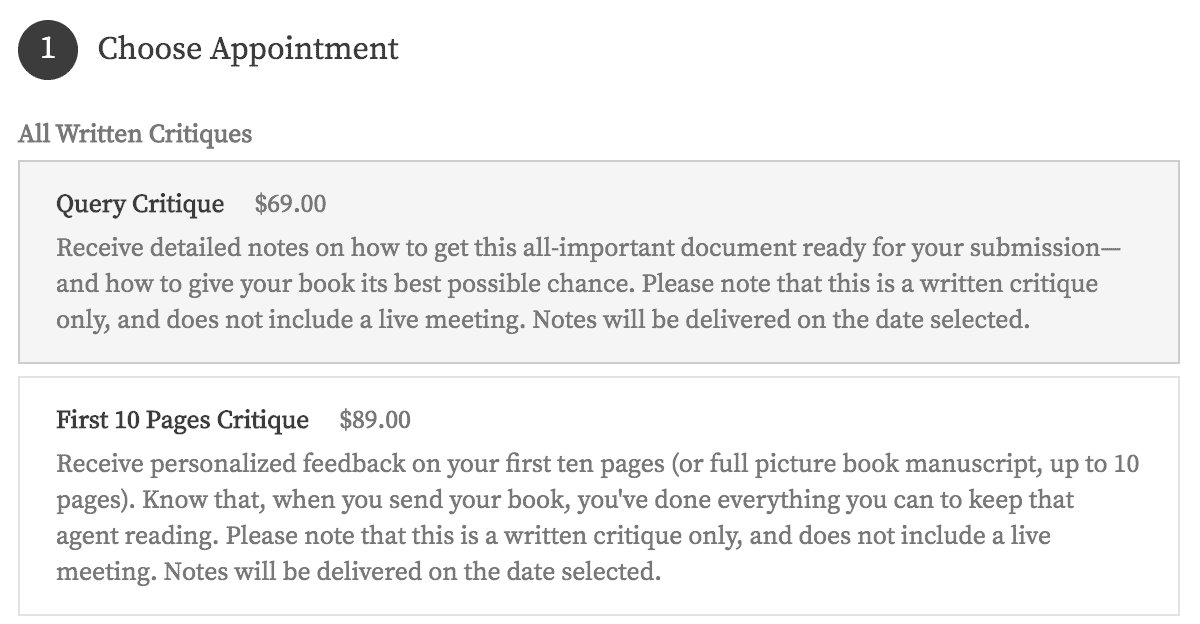
We recommend that you start in the browser Chrome (if you have it), and on a computer (versus your phone or iPad).
Please note that you’ll need your work (the pages you’d like critiqued) ready to go.
You can choose from a query, synopsis, first 10 pages, first 50 pages, or first 100 pages critique.
Want another type? We are sometimes able to accommodate special requests. Just let us know: https://manuscriptacademy.com/contact
Click your preferred critique type.
Step Two: Choose Your Faculty Member

Once you’ve selected your critique type, you’ll see a list of available faculty members, in alphabetical order by first name.
We recommend that you browse all of them looking for a good possible fit.
Optional pro tip: Hit CTRL+F (or Command+F on Mac), type in your genre, hit enter, and look at those who come up.
Can’t get that to work? No worries. Just browse your possibilities.
Then click on your preferred faculty member.
Step Three: Set Your Due Date
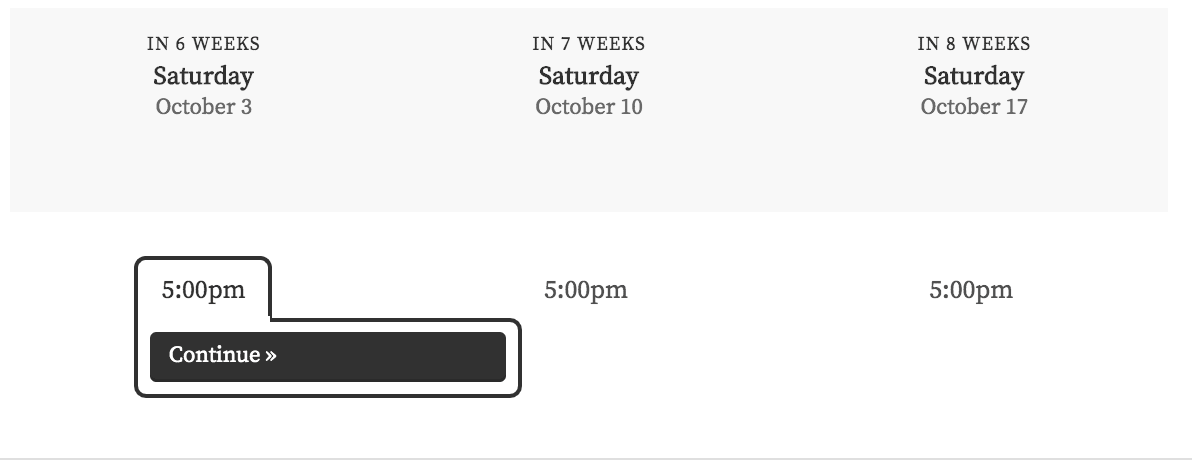
Select a time on the calendar, then click continue.
This is your due date. Your work will arrive in your email inbox within 24 hours of the time you choose on the calendar.
Please note that you don’t have to do anything–because the work will arrive by email, and there’s no live meeting attached, you do not have to mark this time on your calendar.
Step Four: Upload Your Work
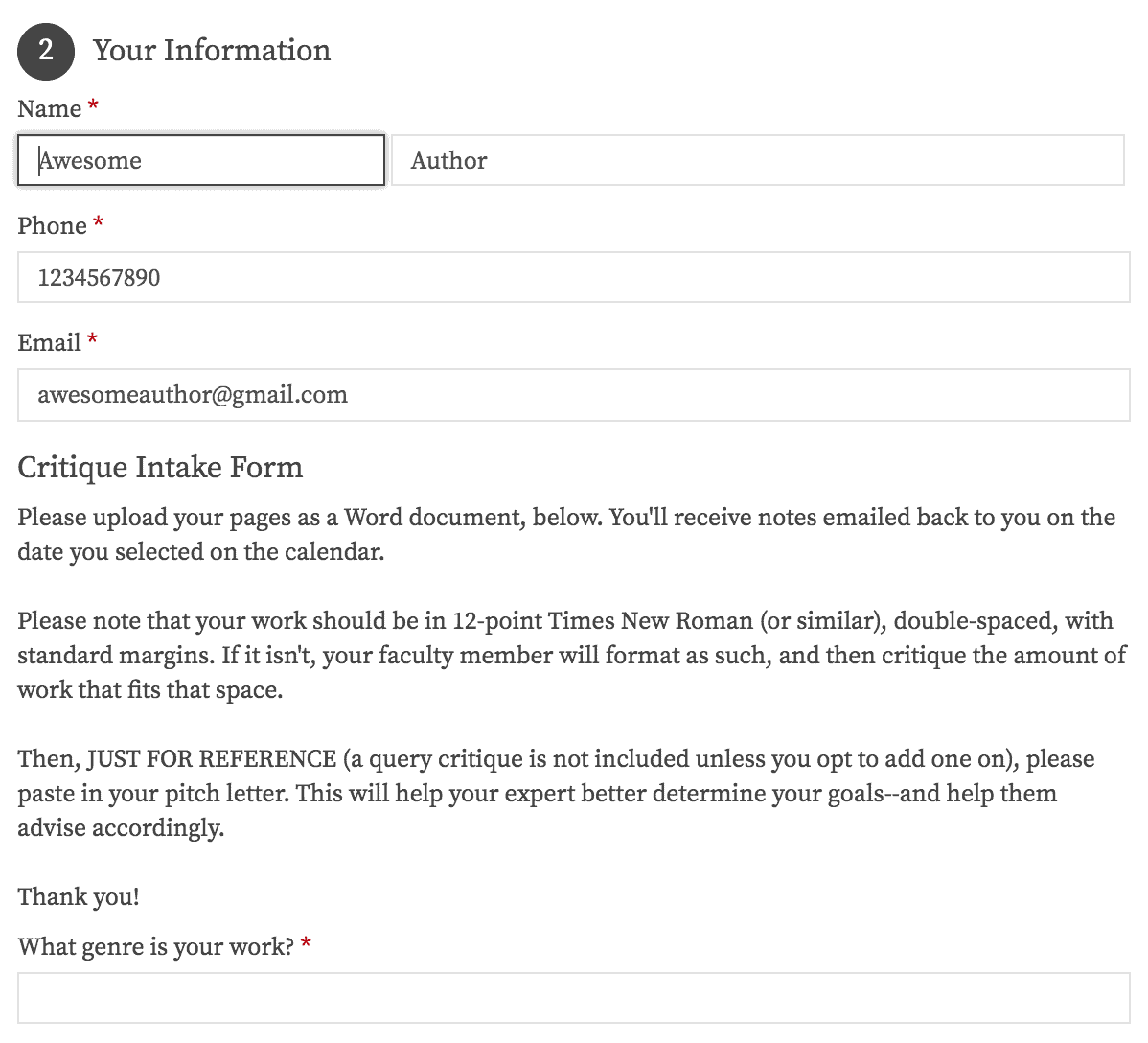
You’ll be asked for your name, preferred contact method, and the work you’d like to go over during your meeting. However, there is no meeting attached–your work will simply arrive in your email within 24 hours of the date you select.
If you have any trouble uploading your work, it is likely a pop-up blocker in your browser. That looks like this:

If you see the icon that looks like a calendar with a red X in your URL bar (where you see ManuscriptAcademy.com), click that, then tell it to allow the pop-up. Then try again.
Step Five: Finish and Pay

If you have a coupon, please insert it into the field and click Apply.
Then click Pay Now for Stripe (credit card) or Pay with Paypal for Paypal.
Step Six: You Did It!
Yay! Well done!
Now check your email for a confirmation from Ac*****@****************st.com (you may have to check spam).
Your confirmation will have further tips, instructions, and more.
Don’t receive it? Let us know ASAP, and we’ll see what went wrong.
Need More Help? We’re Here!
Use the form below, and we’ll be in touch ASAP.
Please note that our hours are Monday-Friday, 9a-5p NYC time.
However, please rest assured that we can fix almost everything retroactively, so please don’t stress.